Introduction
In my previous blog post I explored using AI to clean up my Anki deck and finally settled on two AI prompts to help me create Anki decks for Thai words. However, all of this would be for nothing if I did not have a way to programmatically update the existing content inside Anki.
So, before I even started with exploring prompts, I researched my options for programmatically managing the content in Anki.
Built-in export and import functions
Anki has built-in functionality to export and import content. For exporting content, you can use one of the standard formats.
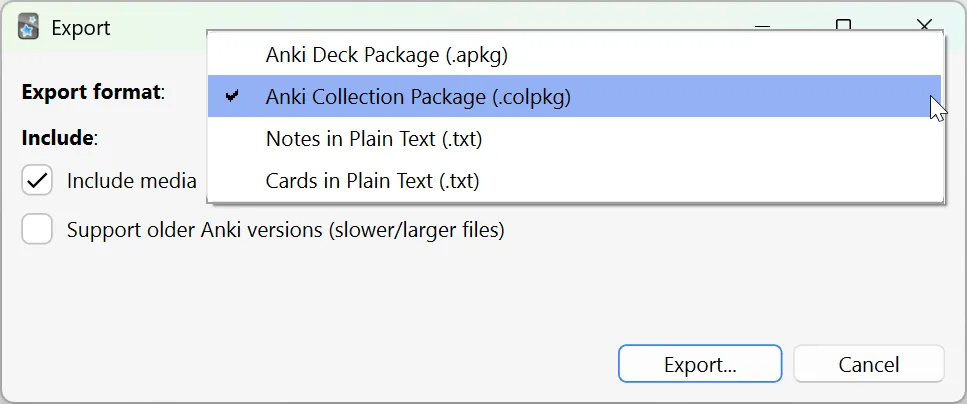
The two Plain Text options simply dumped the contents of the Anki deck into a text file with some sort of markers. I discarded this option immediately because, even if I could find proper documentation for it, it would require me to write some sort of custom parser.
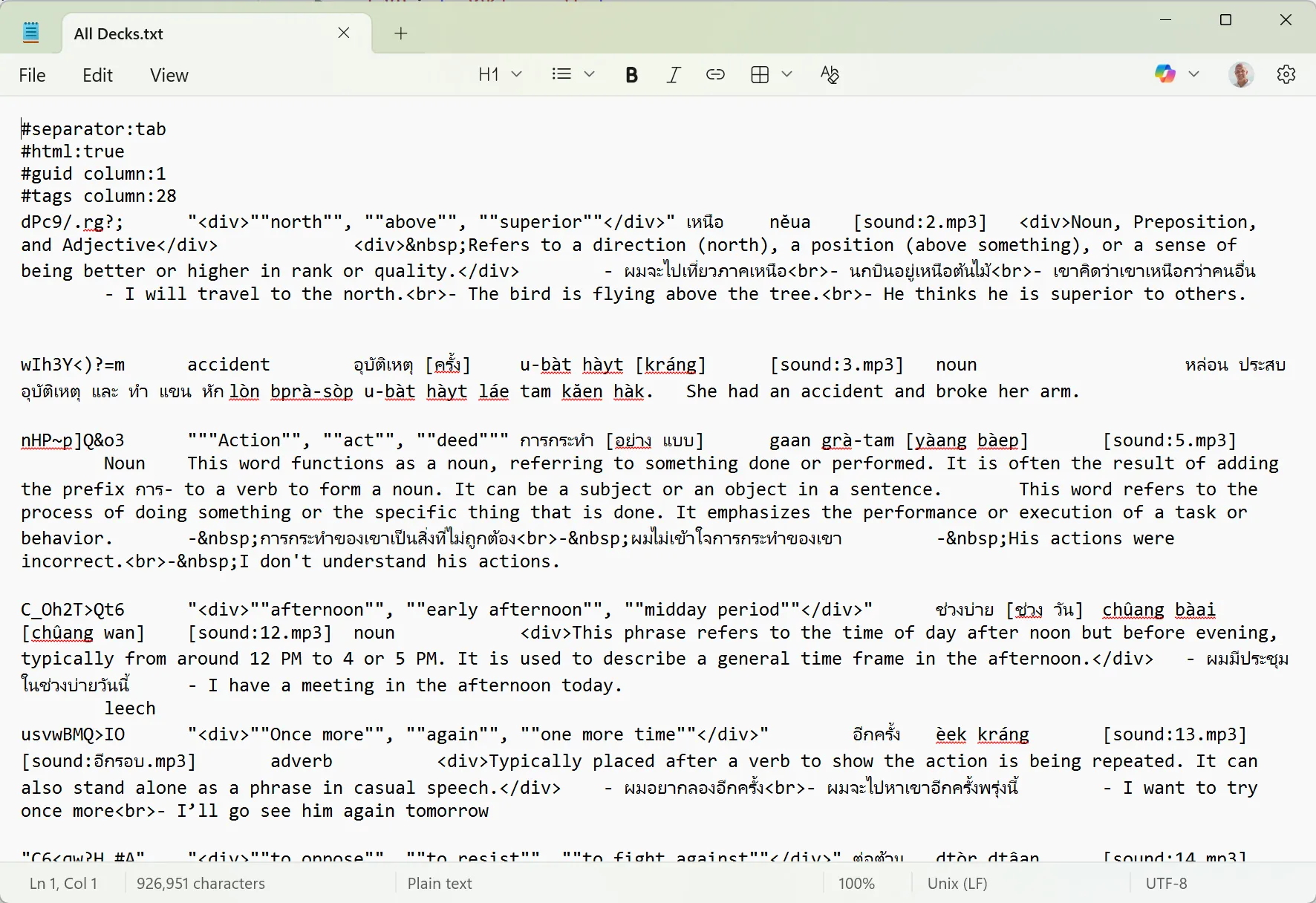
Both the Anki Deck Package and Anki Collection Package options are proprietary formats which are essentially ZIP files. These ZIP files contain a file with the extension .anki2 which is a SQLite database containing all the data of your deck.
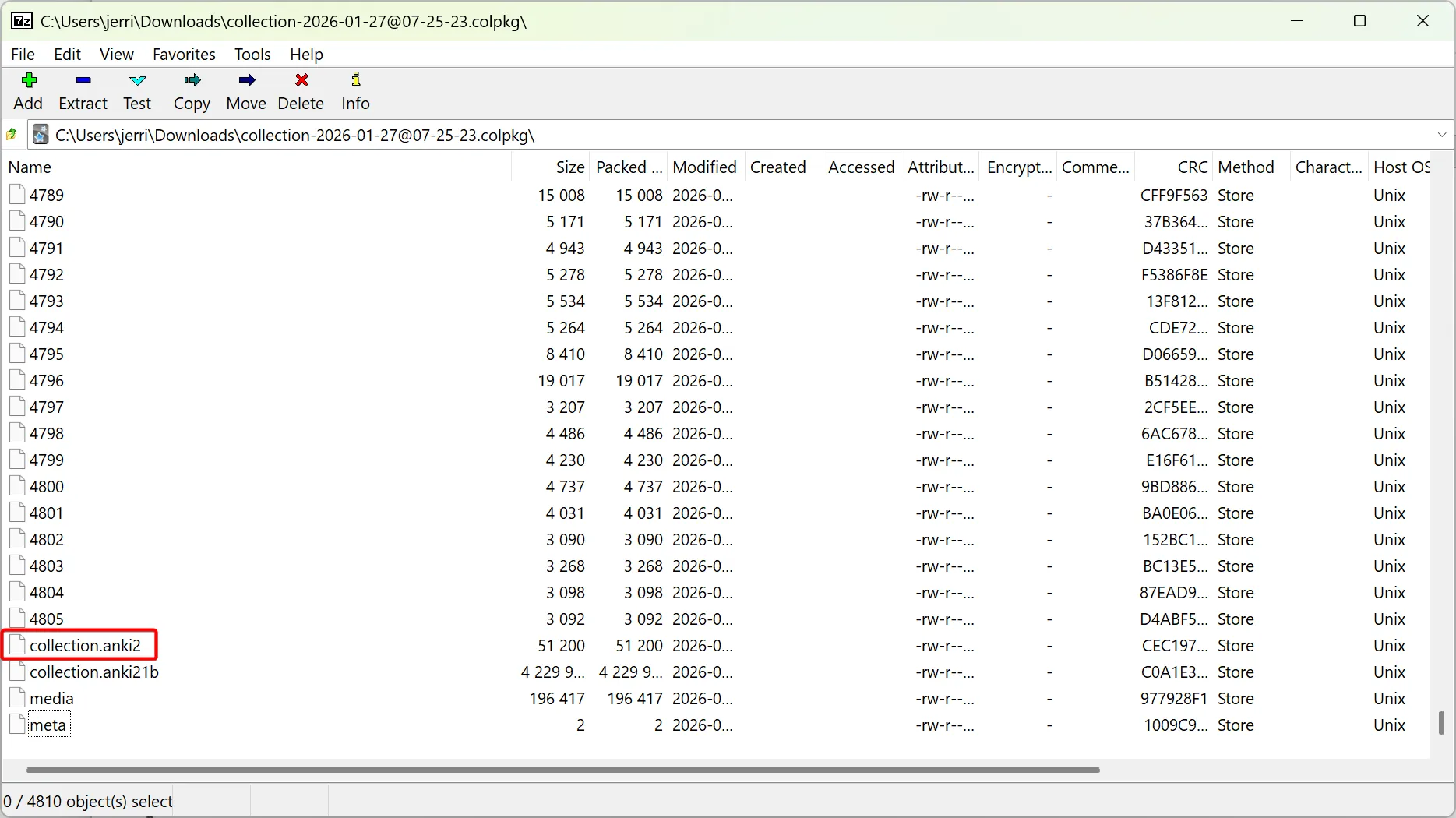
The structure of this database is documented on the Anki Wiki, so this was definitely an option. However, I would have preferred something simpler such as a JSON or CSV format.
Exporting as JSON
After more searching, I eventually discovered the CrowdAnki add-on which allows exporting to and importing from JSON. Once you install this add-on, you get a new “CrowdAnki JSON representation” option in the export dialog.
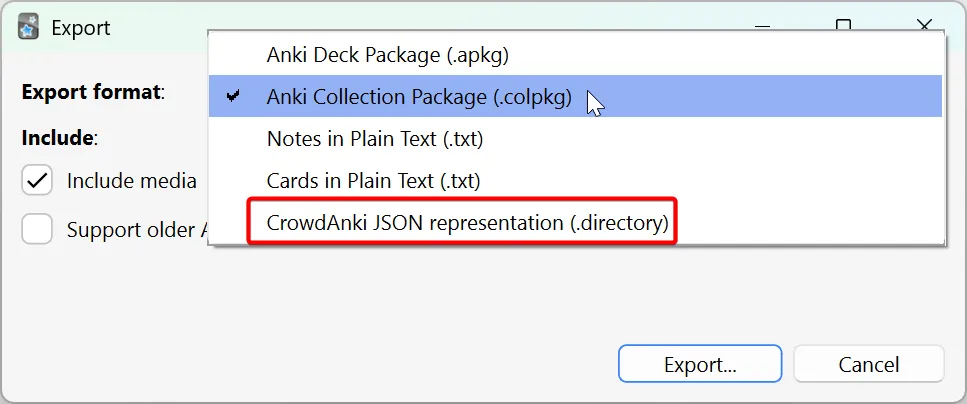
Exporting a deck using the add-on creates a single JSON file. The JSON is in a proprietary structure, but since it is just a JSON file, it is pretty easy to make sense of and, importantly, there and hundreds of tools you can use to view, parse and update JSON files.
Browsing the JSON file, I saw an array named notes which contain the individual notes.
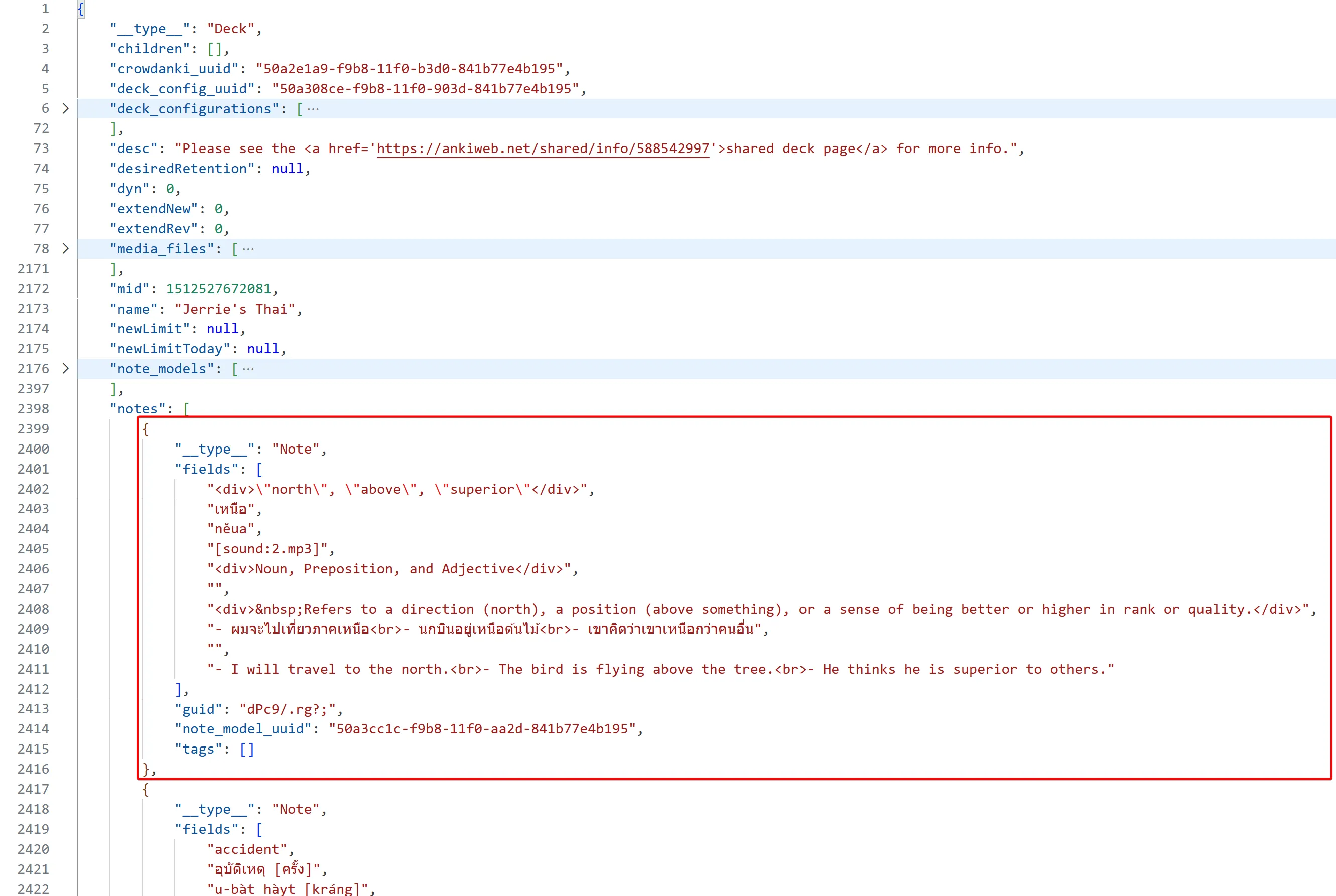
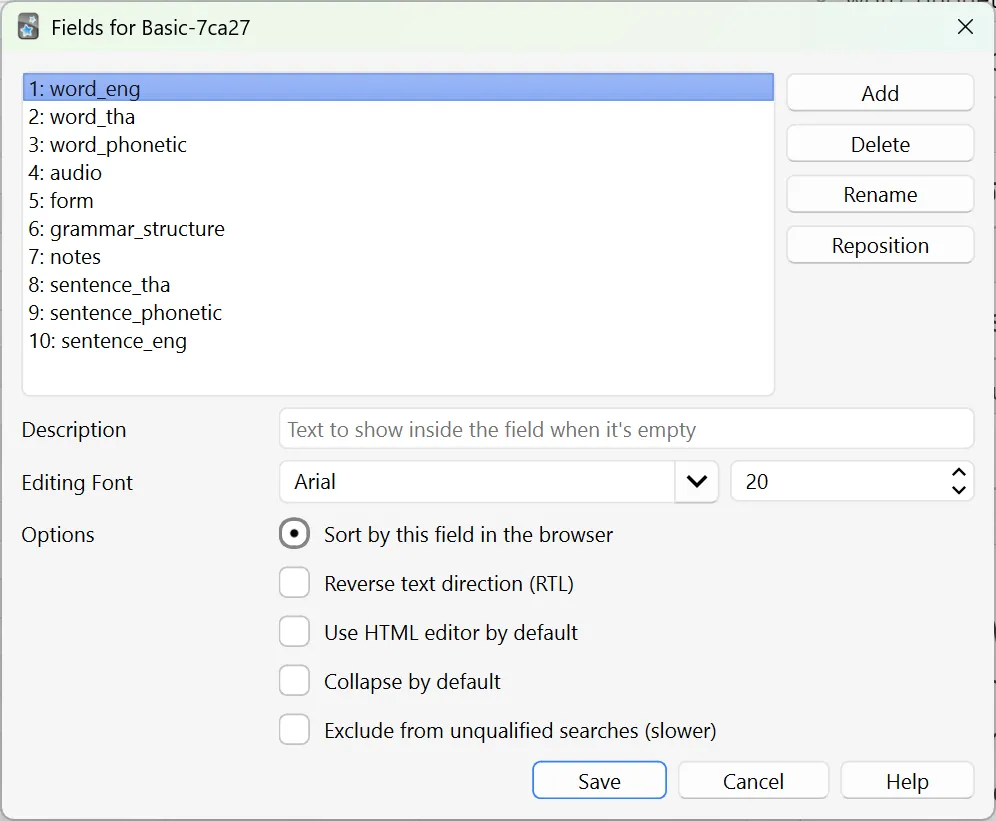
The fields array contain the values for the various fields in my cards, which can be seen in the screenshot below. So in my case, the field value at array index 0 is the value for the word_eng field. The value at index 1 for the word_tha field. Etc.
Updating a card
I was happy that I could export the contents of my cards, but I had to confirm that I could import it. Most importantly, I wanted to ensure that the import only updated field values and did not alter my learning progress.
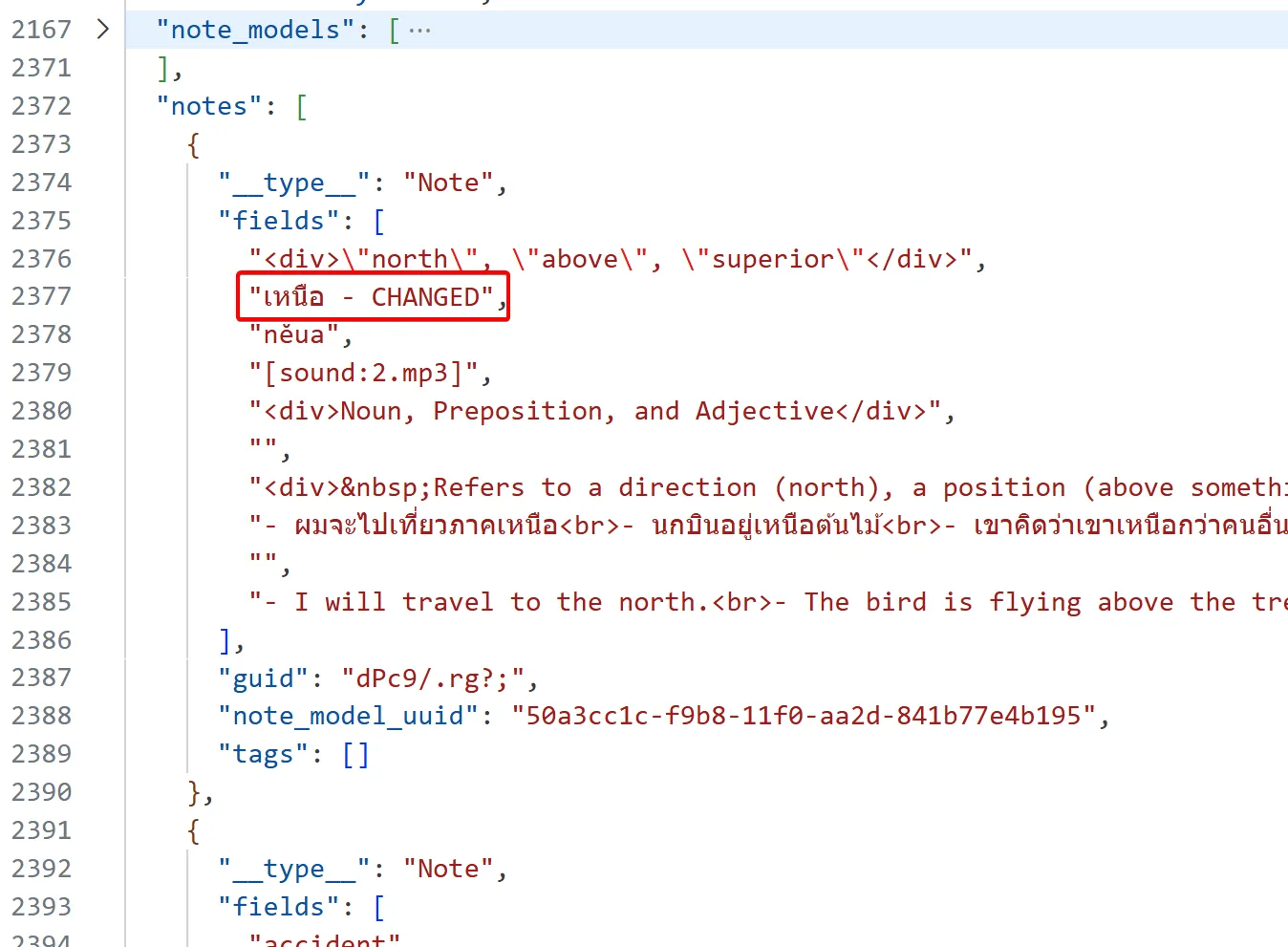
So, I made a backup of my deck and then changed the value for one of the notes.
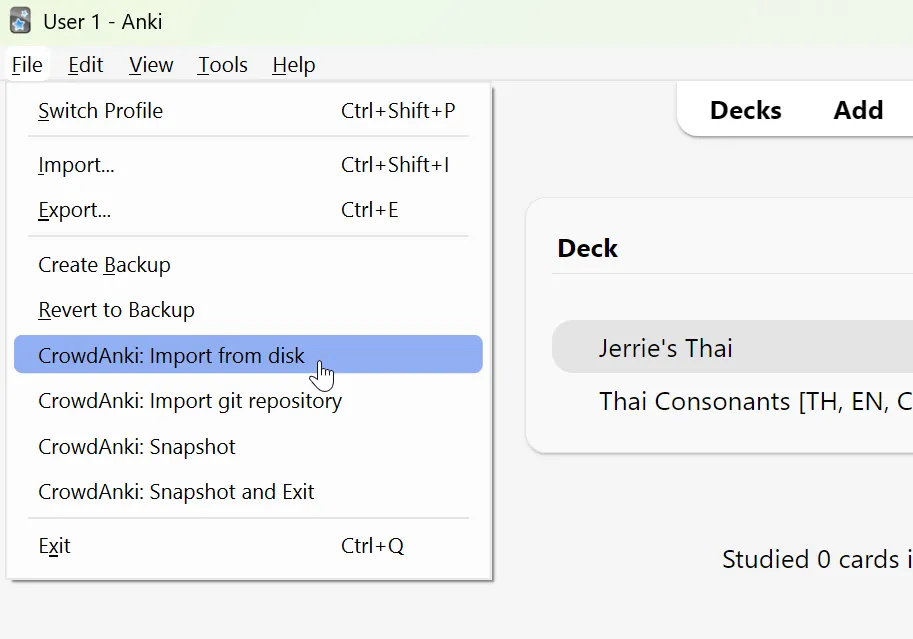
Inside Anki, I used the new CrownAnki import option.
After completing the import process, I searched for the card I updated and confirmed that I could see the new updated value.
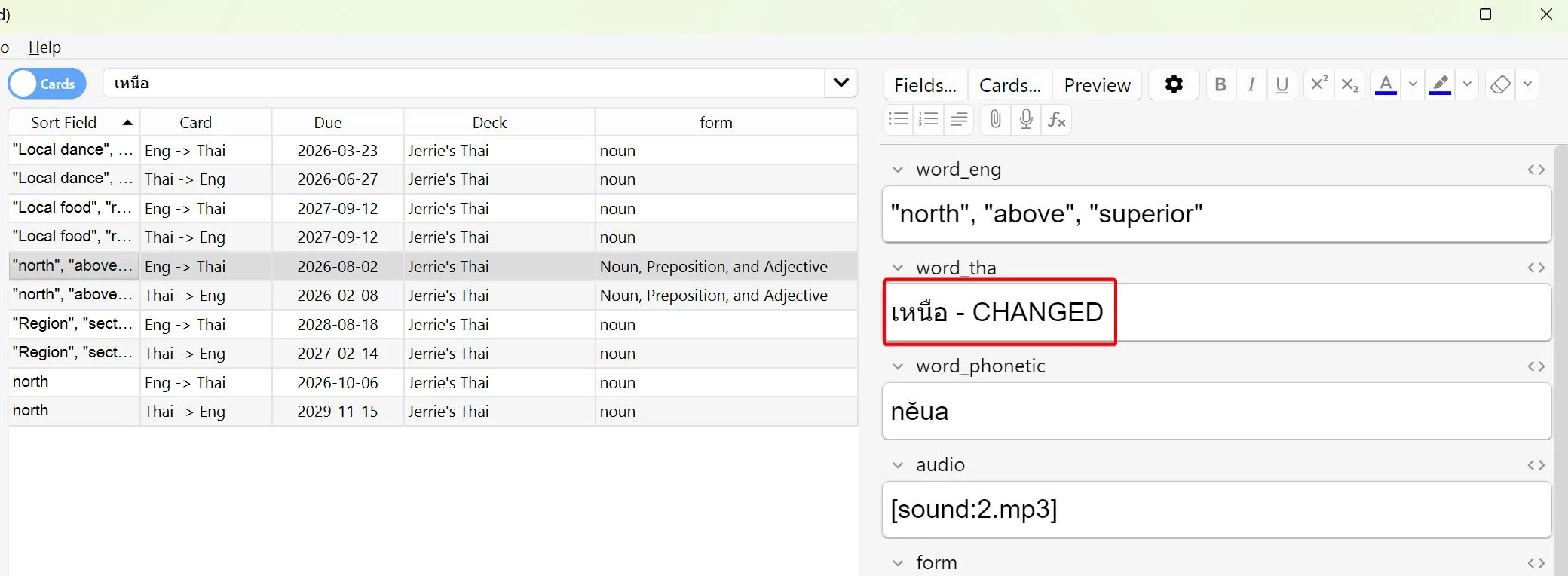
Also, I confirmed that the import did not alter any of my learning progress, as can be seen from the Due dates of the cards in the screenshot above.
Adding cards
I would also need to add cards. A quick search of the CrowdAnki GitHub repository did not offer any information, but I figured that I could probably just add a new item to the notes array in the JSON file and try it out.
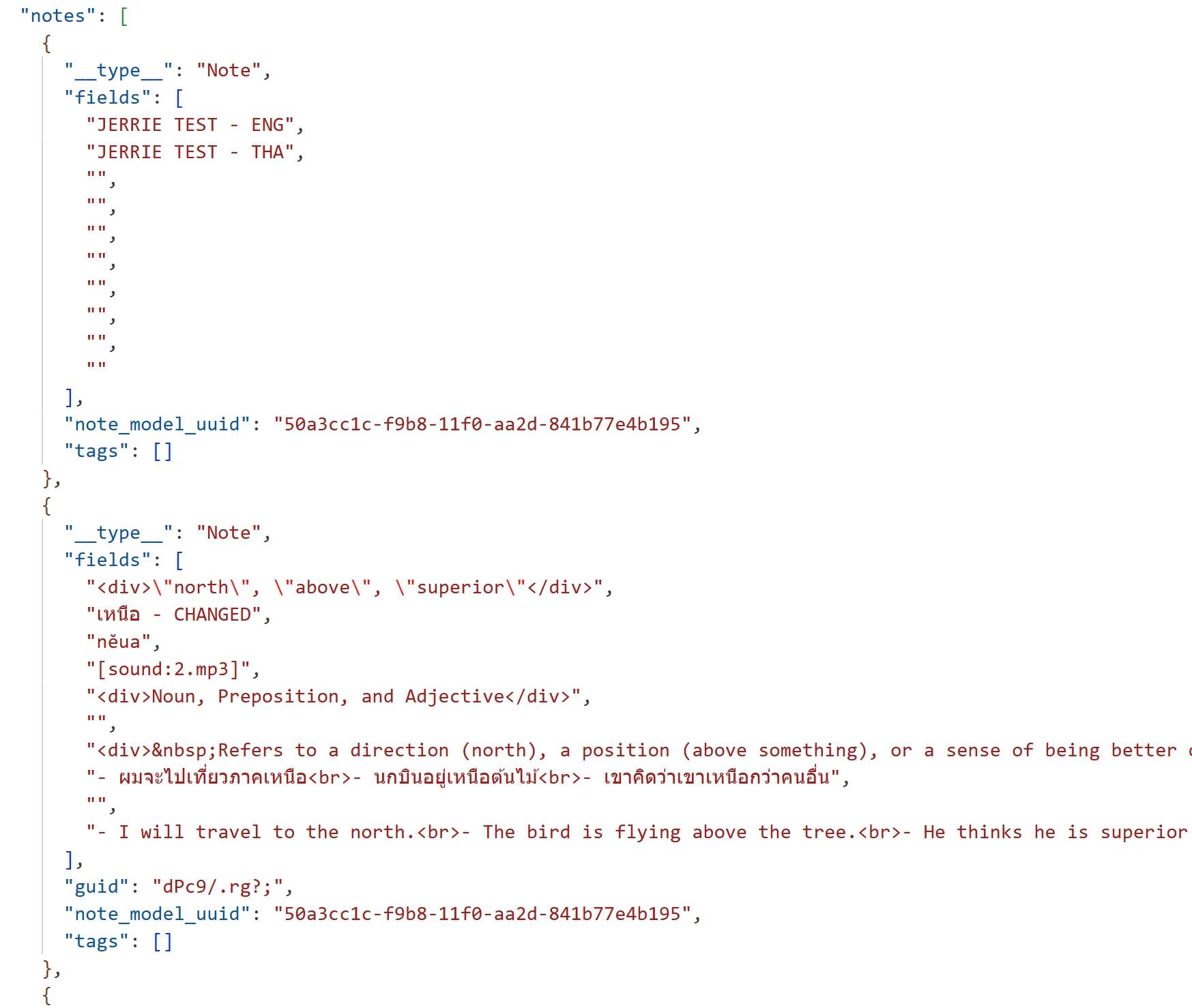
I noted that existing cards had a guid property which I figured would be the ID of the card in Anki. Since this was a new card, I omitted this property.
Once again, I did the import and confirmed that I could see my new card.
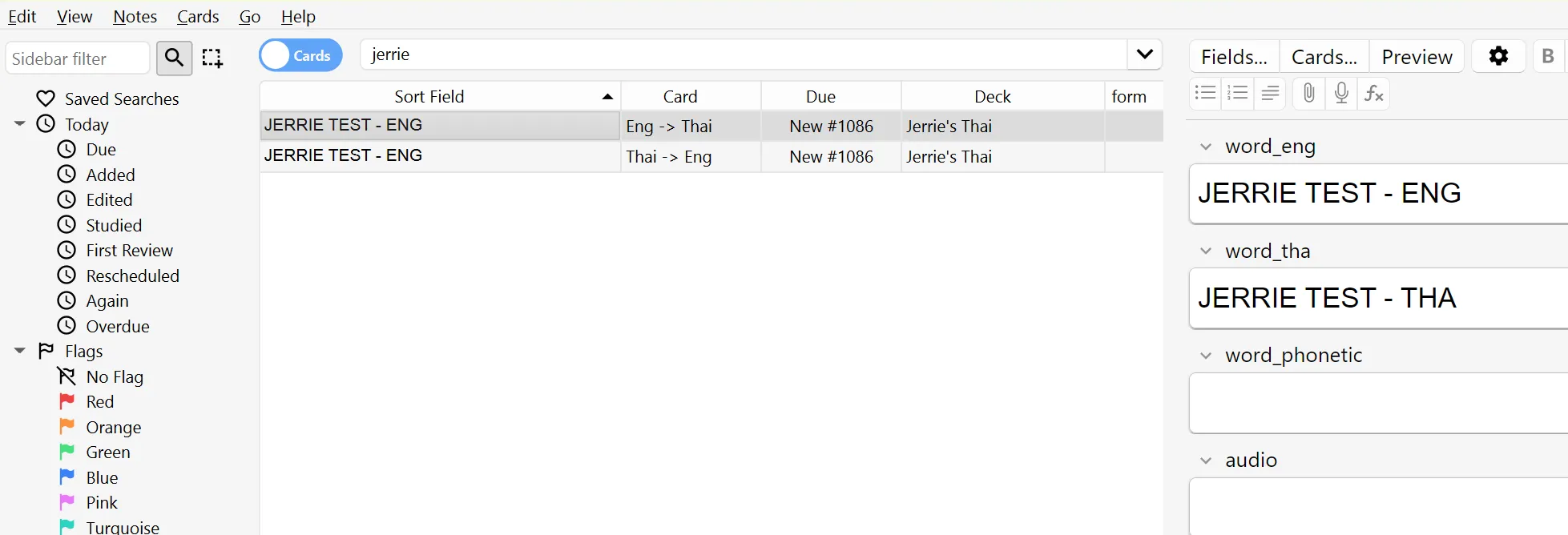
With this completed, I was happy I had everything in place to update my Anki deck.
Conclusion
In this blog post, I continued working on updating my Anki deck for learning Thai by exploring my options for exporting and importing data. In the next blog post, we’ll start cleaning up some of the data.